Folder Lock vs File Encryption — Key Differences
How does Folder Lock compare to popular free encryption alternatives like VeraCrypt?
| Feature | Folder Lock | VeraCrypt |
|---|


| Feature | Folder Lock 10 | VeraCrypt |
|---|---|---|
| Primary approach | ✓ File, folder and Locker-based protection | ✓ Encrypted containers and volumes |
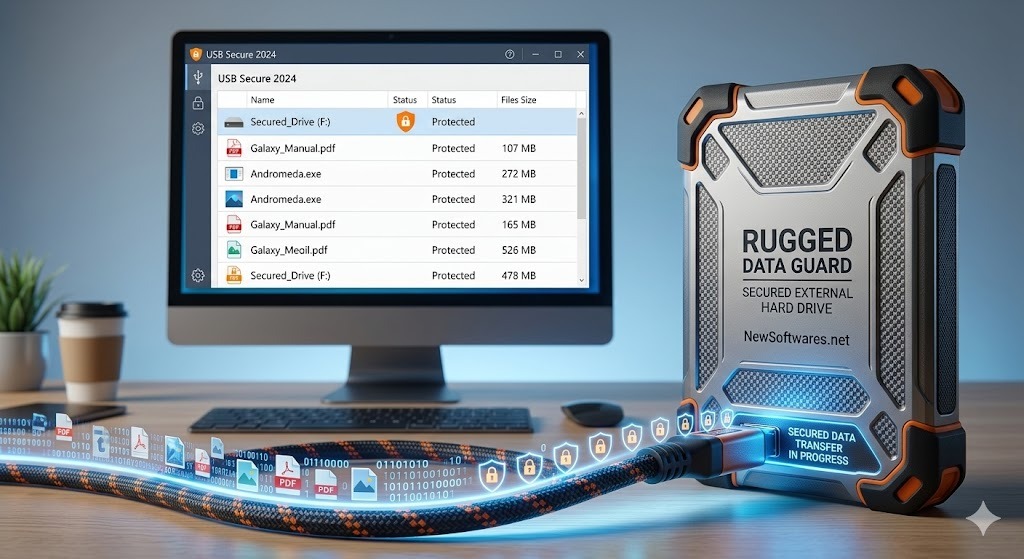
| External drive protection | ✓ Portable Lockers for USB/HDD storage | ✓ Encrypted container or volume on the drive |
| Beginner-friendly workflow | ✓ Guided graphical interface | ~ More technical setup |
| Secure file shredding | ✓ Built-in shredding tools | ✕ Not a core built-in workflow |
| Cloud backup and device sync | ✓ Integrated with Folder Lock features | ✕ No built-in cloud-sync service |
| Best suited to | Users who want quick folder security and portable encrypted storage | Users who want detailed control over container or drive encryption |
How to Lock a Folder on External Hard Drive Using Folder Lock
If you want to create a secure, portable vault on your external HDD, follow these steps.

Step 1: Access the Portable Lockers Feature
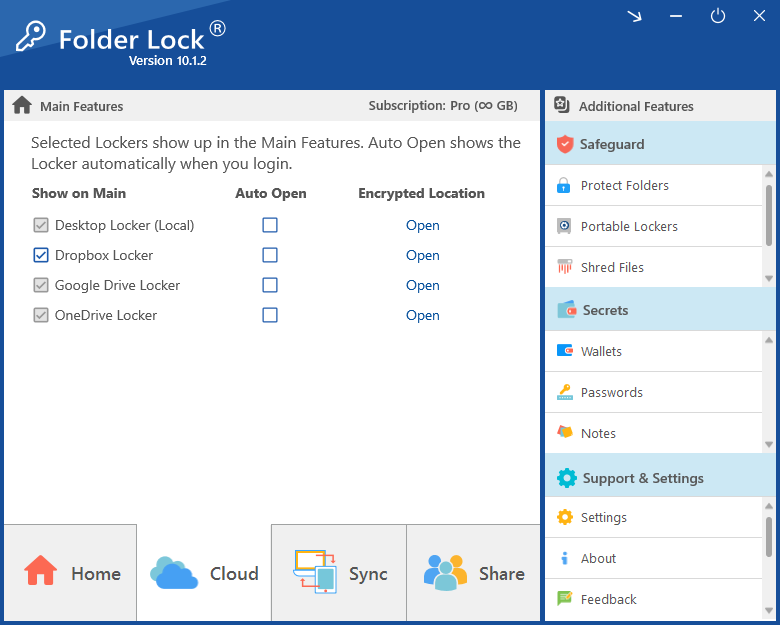
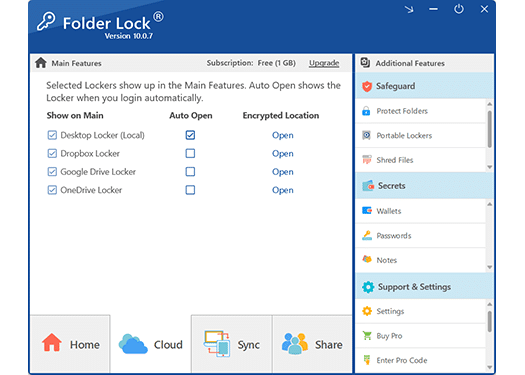
Open Folder Lock 10. In the main interface, navigate to the Safeguard section in the right-hand menu and select Portable Lockers. This specific feature is designed exactly for external storage.

Step 2: Create and Locate Your Vault
Click on Create Locker. Give your new portable vault a descriptive name, and for the location, browse and select your connected external hard drive (e.g., E:\ or F:\).

Step 3: Establish a Secure Password
Type in a strong, unique password and confirm it. Crucial Warning: Folder Lock utilizes strict AES 256-bit encryption and does not store passwords on their servers. If you forget this password, your data is completely unrecoverable.
Step 4: Define the Locker Capacity
Use the dropdown menu to set a maximum size limit for this locker (Pro users can allocate up to 2 TB). Click the Create button. The software will generate a secure file container on your external drive.

Step 5: Transfer and Secure Your Files
Once created, you can open the locker (which acts like a virtual drive). Drag and drop your sensitive folders inside. When you are done, simply click Close Locker in the application. Your files are now permanently encrypted and safely self-contained on your portable drive.
Folder Lock 10 (Free)
Test the core locking and local encryption features.
- Basic file hiding capabilities
- Create Desktop Lockers (Limited to 1 GB)
- Sync across 2 devices
- Note: Portable Lockers not included
Folder Lock 10 (Pro)
Complete security for external and cloud drives.
- Unlimited Locker size
- Create Portable Lockers for External Drives
- Securely shred original files
- Cloud backup integration & 5-device sync

Cloud Secure
Secures folders specifically stored in cloud synchronization folders like Google Drive, Dropbox, and OneDrive.
Folder Protect
Provides granular, policy-driven access controls. Choose between 'No Access', 'No Visible', 'No Delete', or 'No Write' permissions to precisely dictate how others interact with your shared files.
